> ## Documentation Index
> Fetch the complete documentation index at: https://docs.unvest.io/llms.txt
> Use this file to discover all available pages before exploring further.
# How to use Unvest with Safe Multisig?
> If you are planning on using a Safe Multisig to interact with Unvest, we got you covered!
This step by step tutorial shows you how to connect a Safe (Formerly Gnosis) multisig wallet to Unvest and deploy a token vesting contract.
It's required that you create a custom app in the [Safe web](https://app.safe.global) and use either `https://app.unvest.io` for Unvest mainnets or `https://test.unvest.io` for Unvest testnets.
In order to use Unvest Tools with a Safe multisig, you will have to interact directly from your [Safe](https://app.safe.global) web or mobile app.
Once you are in the Safe web, you will need to open Unvest App.
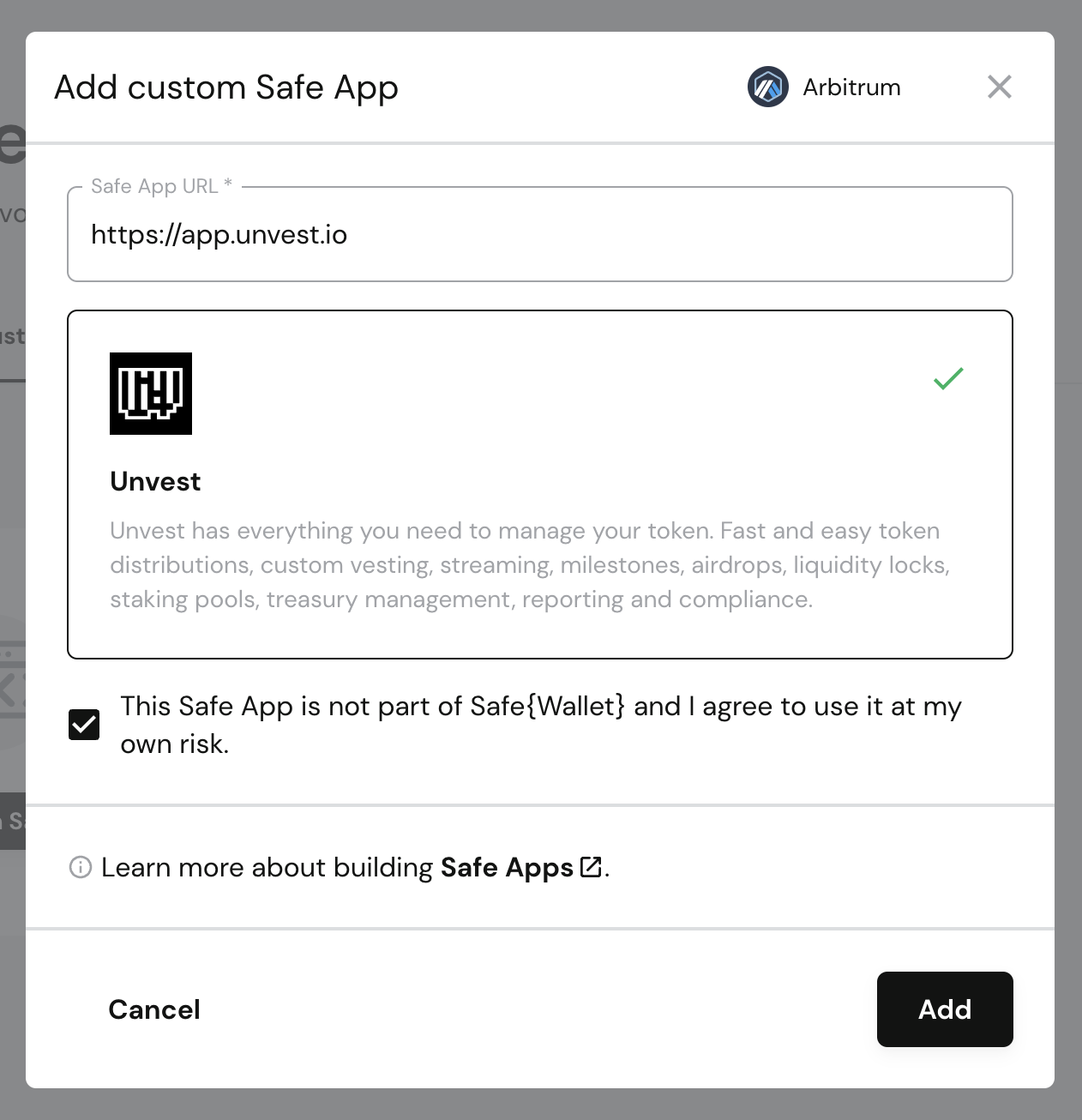
If this is your first time you will have to create a custom app:
* Head to Safe Apps and [create a custom app](https://app.safe.global/apps/custom).
* To interact with Unvest mainnets enter the following URL `https://app.unvest.io`.
* To interact with Unvest testnets enter the following URL `https://test.unvest.io`.
In case you see a message `The app doesn't support Safe App functionality` just try to type again the URL.
Click on Unvest Team to use Unvest various available tools such as vesting creation, liquidity-locks, staking-pools, etc...
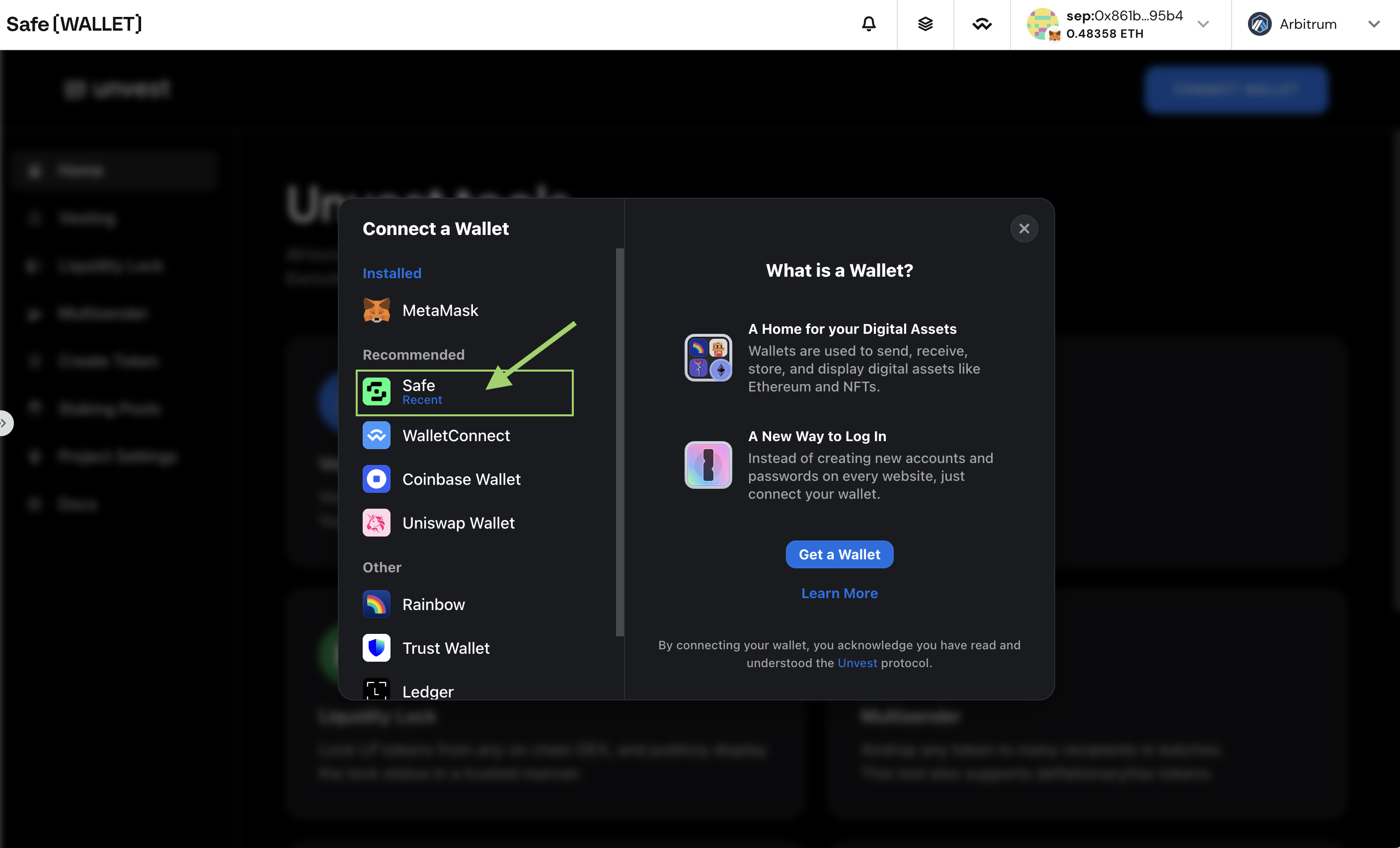
Click on the **Connect** button at your top right.
Make sure that you select the Safe connector. It's important that you make sure that you have selected this connector, otherwise the interaction will be prone to errors.
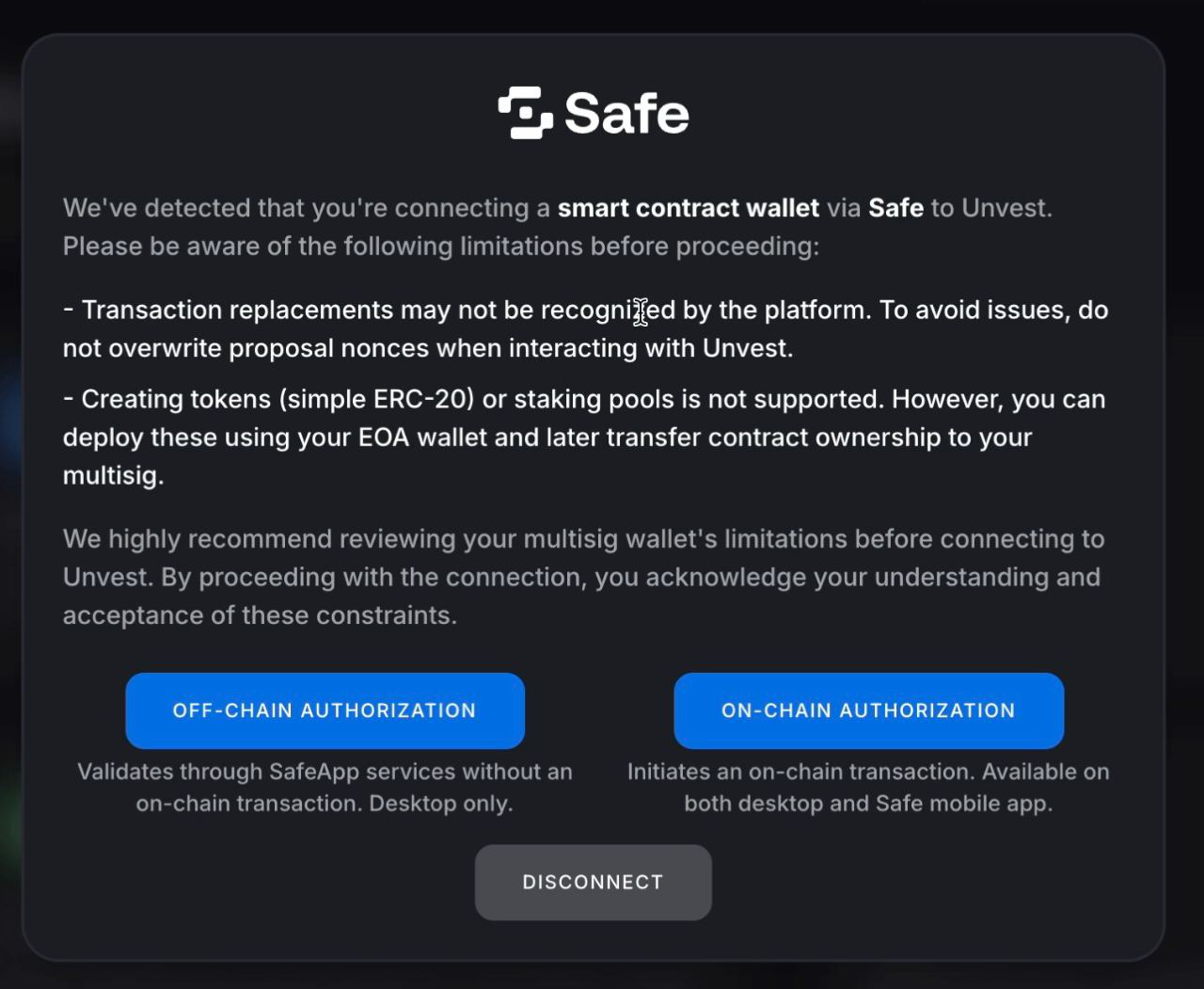
Once you have selected the Safe connector, you will be offered two options to authenticate: on-chain and off-chain.
* On-chain authentication: Messages are stored in the Safe contract, which requires executing a transaction to store the message hash in the contract, resulting in additional gas costs.
* Off-chain authentication: Just like the on-chain authentication it will require the signature from the owners of the Safe. The difference is that this will be stored in the Safe Transaction Service. It stores the messages and signatures in Safe's database. It's a centralized service, but it's open-source and can be deployed by anyone.
Instructions for both methods will be shown to you during your authentication process.
In case you are going with the off-chain authentication, take note that owners will be required to accept the message in a desktop, as this feature is not available yet in Safe mobile app. Also, we recommend you not to switch wallets within the same browser while authenticating.